 AB Design
AB Design
AB Design
NextDNS is a DNS resolver – a security / privacy service that blocks ads on your device and protects it from websites known to host malware and/or violate privacy.
Co-founded by a Netflix Executive in 2019, NextDNS enjoys strong support among privacy-conscious folk and is recommended by the independent review body, privacyguides.org. The service is free for up to 300,000 requests per month (which is fine for most users), after that a monthly subscription is required.
After creating up a free NextDNS account you'll be logged onto the web app. Take a look at the app's URL – it should be in the form https://my.nextdns.io/abc123/setup, where abc123 would be your account ID. It's important to make a note of this somewhere.
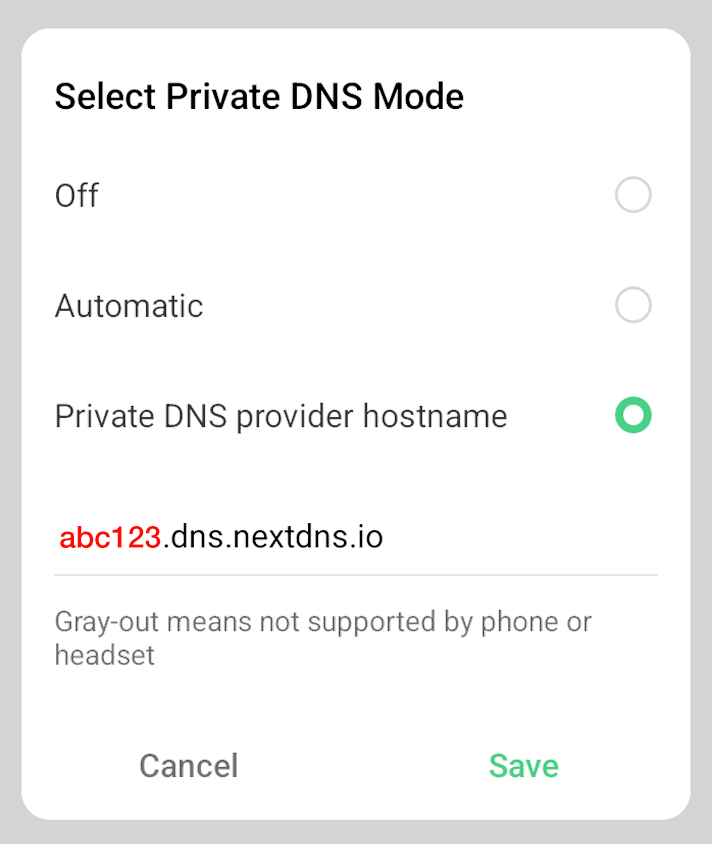
The following steps require the web app (or dashboard). Fortunately it's a nice piece of software, offering a user experience that's both intuitive and seamless, and as easy to use on a phone as on a laptop or PC. Note that while the Google PlayStore hosts a dedicated app for this service, it's not an official NextDNS release, nor is it needed. The web app is fine.
Configuring NextDNS involves enabling or disabling a number of options in the app's Security and Privacy tabs. There are several online guides that walk you through this, but the best IMO is Yokoffing's tutorial on GitHub. My advice is to go through this guide slowly, starting with Threat Intelligence Feeds and ending with Top-Level Domains (TLDs).
The full list of options that need paying attention is as follows. It should only take a few minutes to enable or disable each of these entries.
Threat Intelligence Feeds
AI-Driven Threat Detection
Google Safe Browsing
Newly Registered Domains
Dynamic DNS Hostnames
Parked Domains
Domain Generation Algorithms
IDN Homographs
Typosquatting
Top-Level Domains (TLDs)
NextDNS has a broad selection of built-in blocklists, which are basically text files containing sets of rules needed to block ads, trackers, malware, and phishing domains. Country-specific blocklists are available (you may want to block Finnish ads, for example), as well as lists to block anything related to Google and Facebook. All of these lists can be found under the Privacy tab. After experimenting for a while, I now use the following lists:
HaGeZi – a German IT Consultant – is highly regarded in the privacy community for his DNS blocklists and commitment to making the internet a cleaner, safer place.
The Multi PRO++ list is one of HaGeZi's stricter offerings, but I've never known it to break or crash a site. If you're unsure about using it, try the HaGeZi Multi LIGHT or Multi NORMAL, both also available on NextDNS.
While it might be tempting to enable as many blocklists as possible, doing so would very likely be counterproductive. Along with either unpredictable behavior or an increase in false positives, you'd see noticeable performance degradation. From a psychological perspective, you might also be lulled into a false sense of security, believing your device is more resilient to threats than it actually is.
Fanboy's Annoyance List is designed to block social media content, in-page pop-ups, and various other annoyances. The list includes two other well-known blocklists: EasyList Cookie List and Fanboy's Social Blocking List.
On the sites I visit most often, it blocks far fewer domains than the HaGeZi list, but I always keep it running and think it as a sort of "failsafe" to catch whatever the HaGeZi doesn't.
The Logs tab is where you get to see your device's activity. You'll see browser requests to load a particular website; calls made by that website to external resources such as ad servers and Google services; and calls "phoning home" payloads of user data to what are known as endpoints
You can retain logs for up to two years; I keep them for one day only and, in the Settings tab, opt to have them stored in Switzerland.
Scanning through the logs can be something of an eye opener. On Android I'm often surprised by how much telemetry is being phoned home by some of my more trusted and frequently used apps. Keyboards are a good example of this: they can transmit your personal info (location, IP address, device make and model, etc), even when not in use. Fortunately it's easy to mitigate this by adding the URL to your NextDNS Denylist (see below).
The Analytics tab is where NextDNS makes sense of the info it's gathered about your internet usage, and presents it either in chart form (including a map that shows the global distribution of queries from your device), or as a set of brief summaries. Topics include:
Total queries: resolved vs blocked
Global distribution of queries
Queries over a specified time frame
Recent blocked and allowed domains
Number of domains blocked by blocklist
Most popular root domains
I started using the Denylist while testing Quetta – an attractive, feature-rich Android browser with Chinese roots and a reputation for overenthusiastic telemetry. Before opening Quetta, I cleared my NextDNS logs and then refreshed them once the browser had been up and running for a couple of minutes. Quetta's calls to its endpoints were easy to spot and add to the Denylist.
I did the same thing when testing Microsoft Edge Canary since it too appears to have been conceived first and foremost as a surveillance platform.

I've not used NextDNS' Allowlist, but I do remember that using the AdGuard DNS Filter (one of the blocklists available under the Security tab) caused some videos on the BBC's home page to stop working.
Resolving this problem wasn't a simple matter of whitelisting the BBC. You'd need to find the domain for the specific ad server or web service that's causing the problem and whitelist that instead (bearing in mind that any positive outcomes on the BBC might be countered by a slew of negatives on other sites). In the end, I simply disabled the AdGuard blocklist and the BBC videos worked just fine.


Internet / Tech
Paywalls are a near-universal feature of the internet media landscape, but how do users perceive them, and what's the easiest and most effective way to bypass them?
Internet / Tech
Due to privacy concerns and increasing user awareness, not everyone wants to use a Google or Microsoft keyboard. This article compares three popular Android alternatives.